IT Onboarding - Dell with iPhone - 7. Work Apps
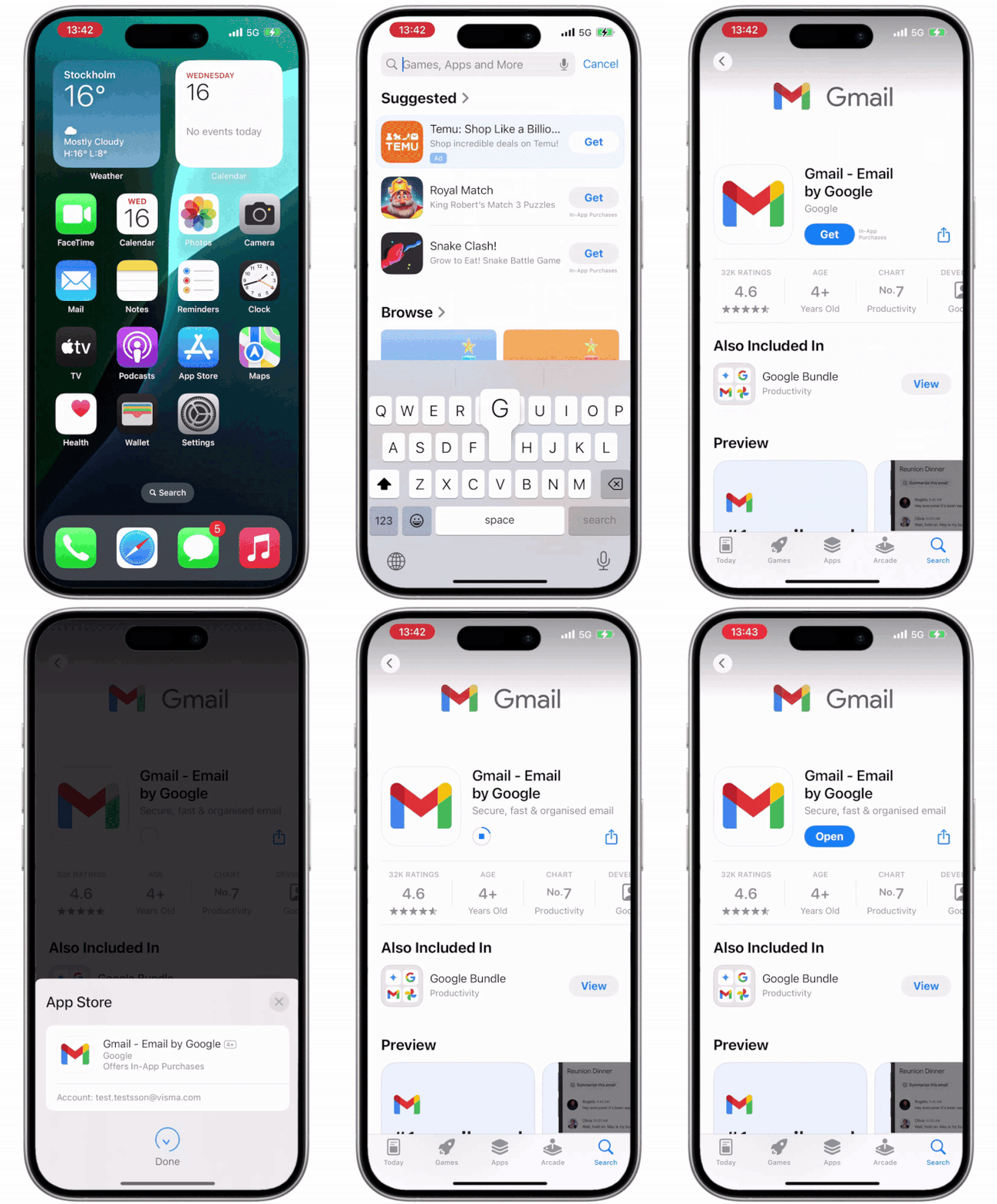
1. Download Gmail
Open the App Store, search "Gmail", select "Get" then "Install".
2. Gmail
Start Gmail, select "Sign in" then "Done" in the top left and finally "Allow". You can now use the Gmail app to send and receive emails.

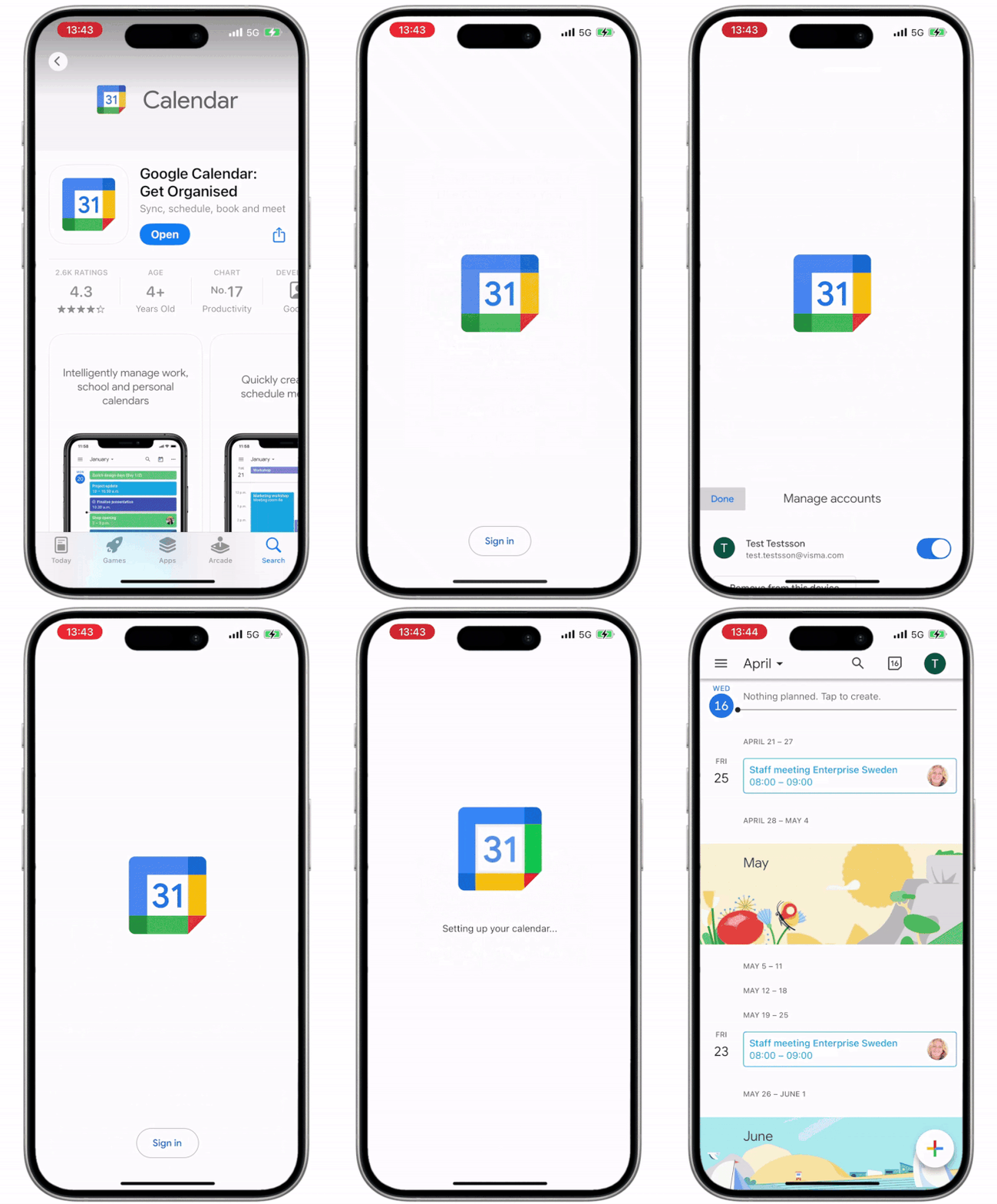
3. Google Calendar
Open the App Store, search "Calendar", select "Get" then "Install".
.gif)
4. Google Calendar sign in
Select "Open", "Allow Full Access", "Sign in" turn the slider next to your account then "Done" in the top left, "Continue", "Share All 0 Contacts" and finally "Allow". You can now see your upcoming meetings and events.
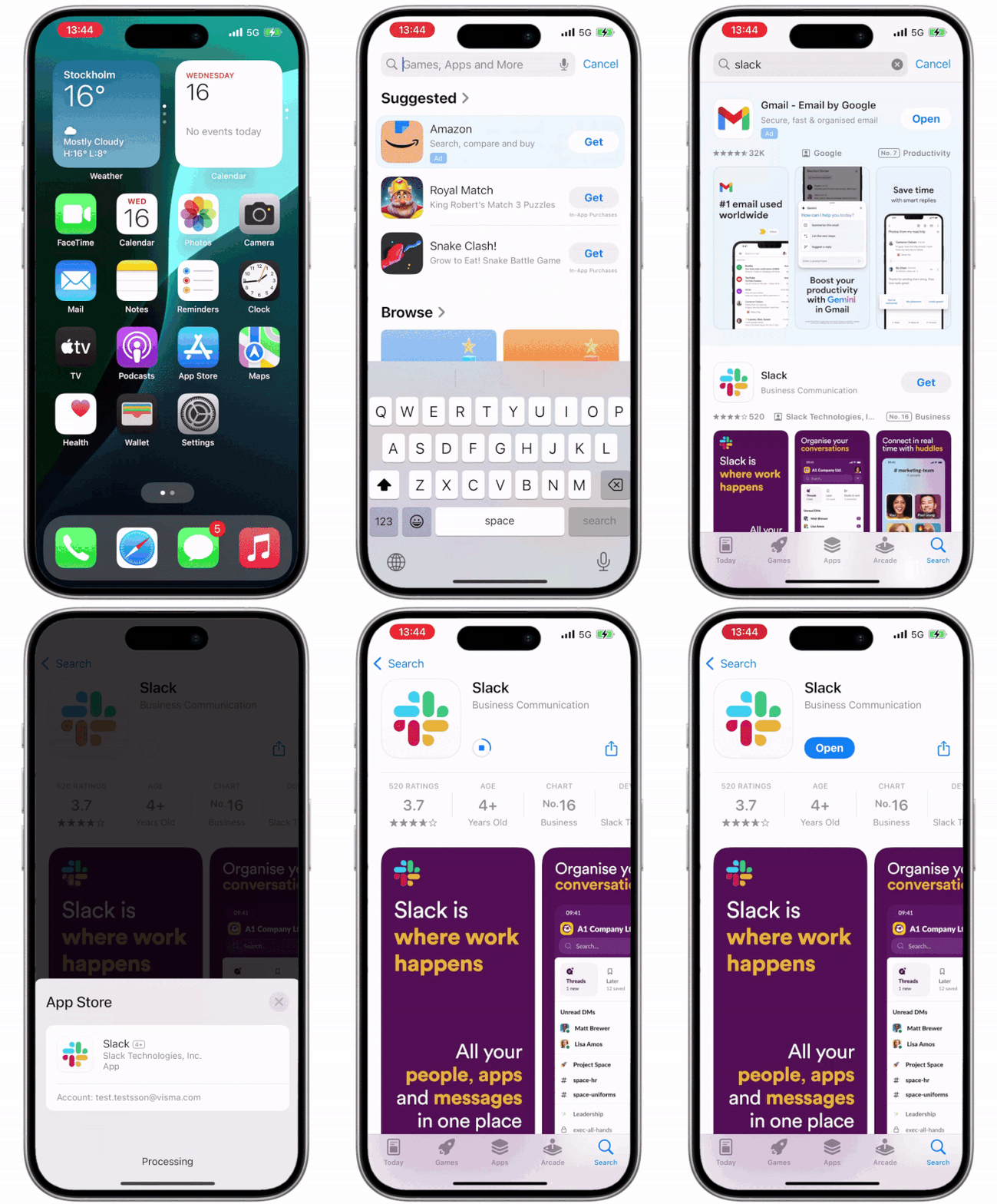
5. Download Slack
Open the App Store, search "Slack", select "Get" then "Install".
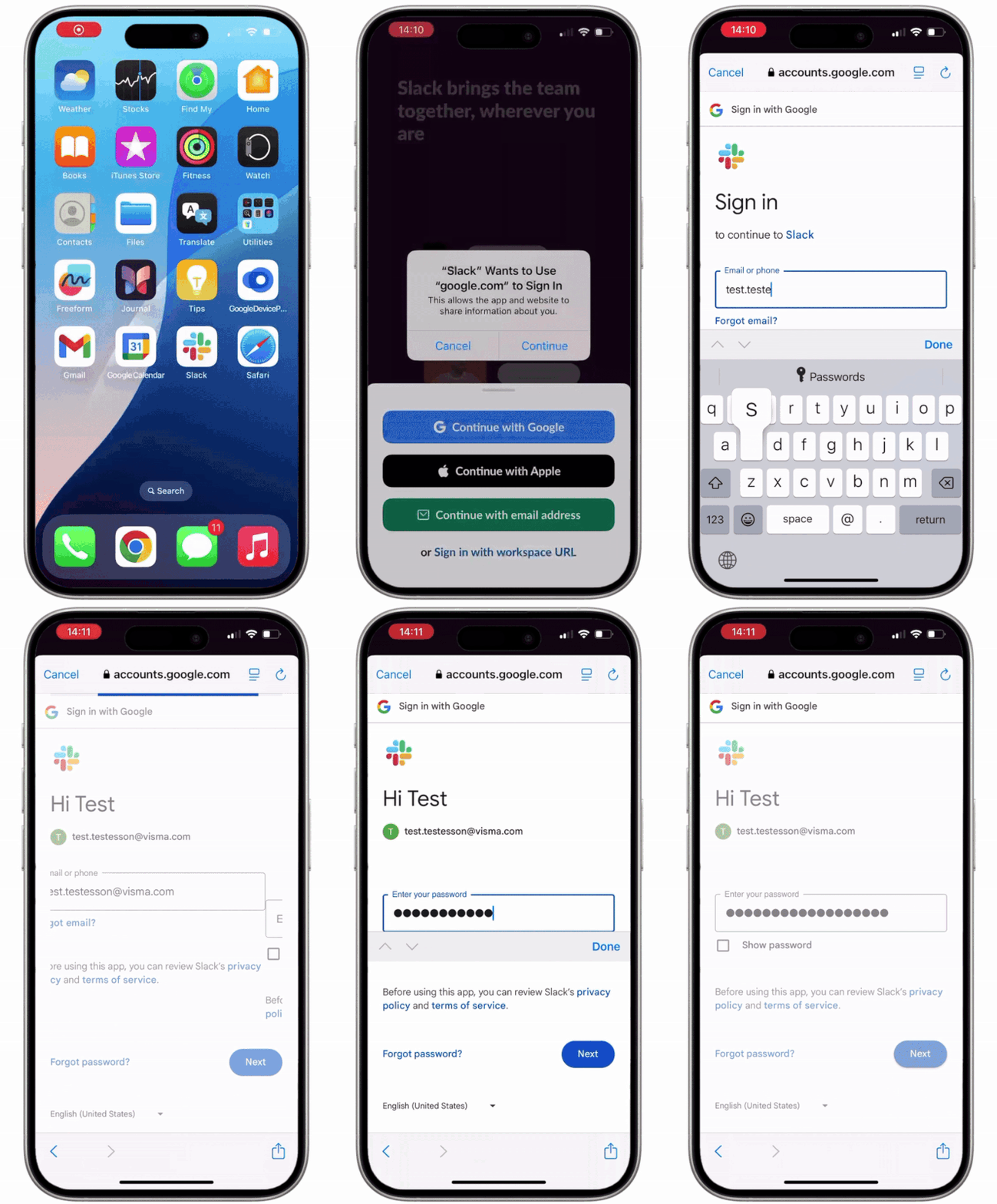
6. Sign into Slack
Open Slack, select "Get Started", "Continue with Google", "Continue" and enter your email. Select "Done" and "Next" then enter your password and select "Done" and "Next".
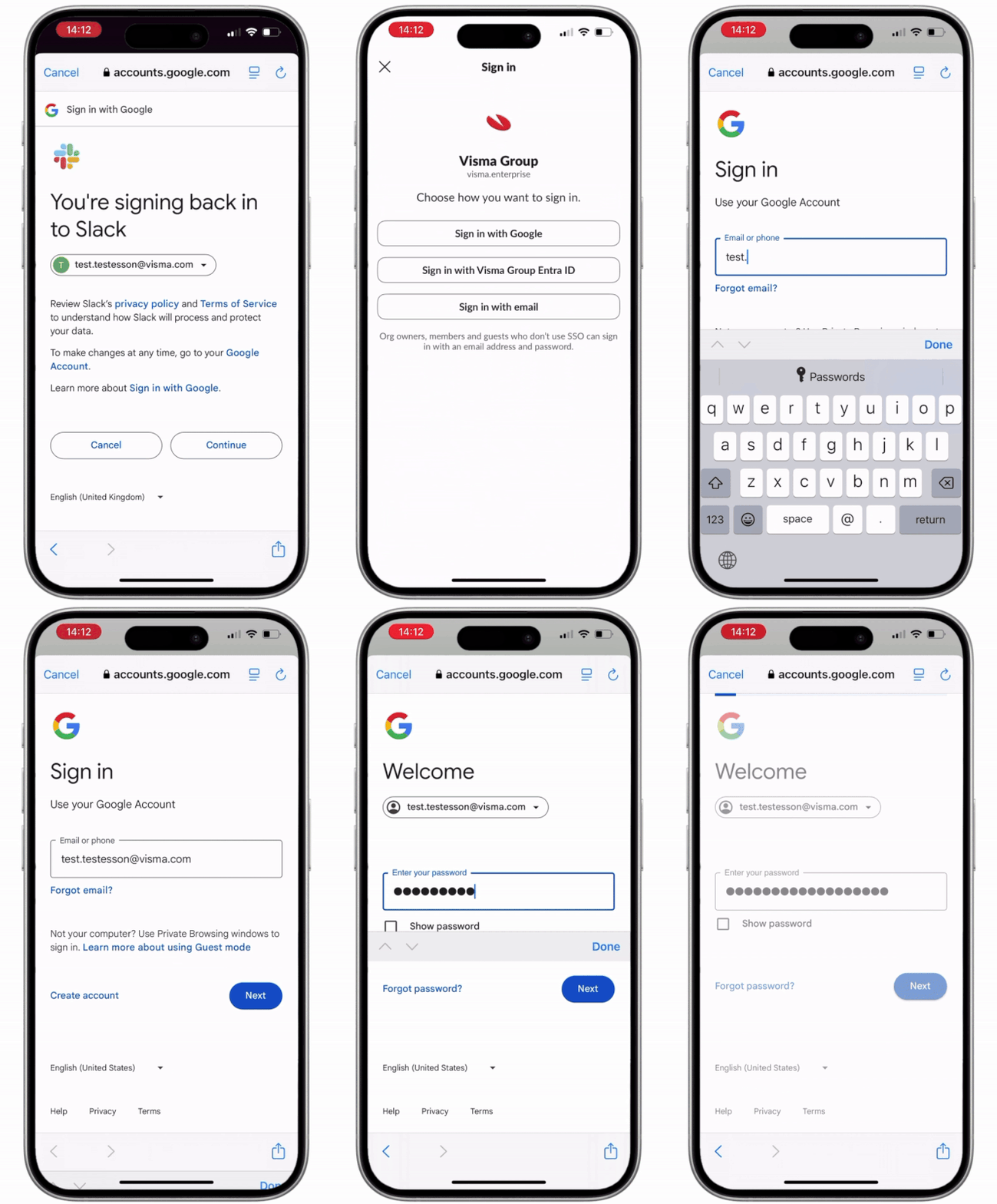
7. Verify the sign in
Select "Continue to sign in" and "Sign in with Google" Once again enter your email, select "Done" and "Next" then enter your password, select "Done", "Next" then "Continue".
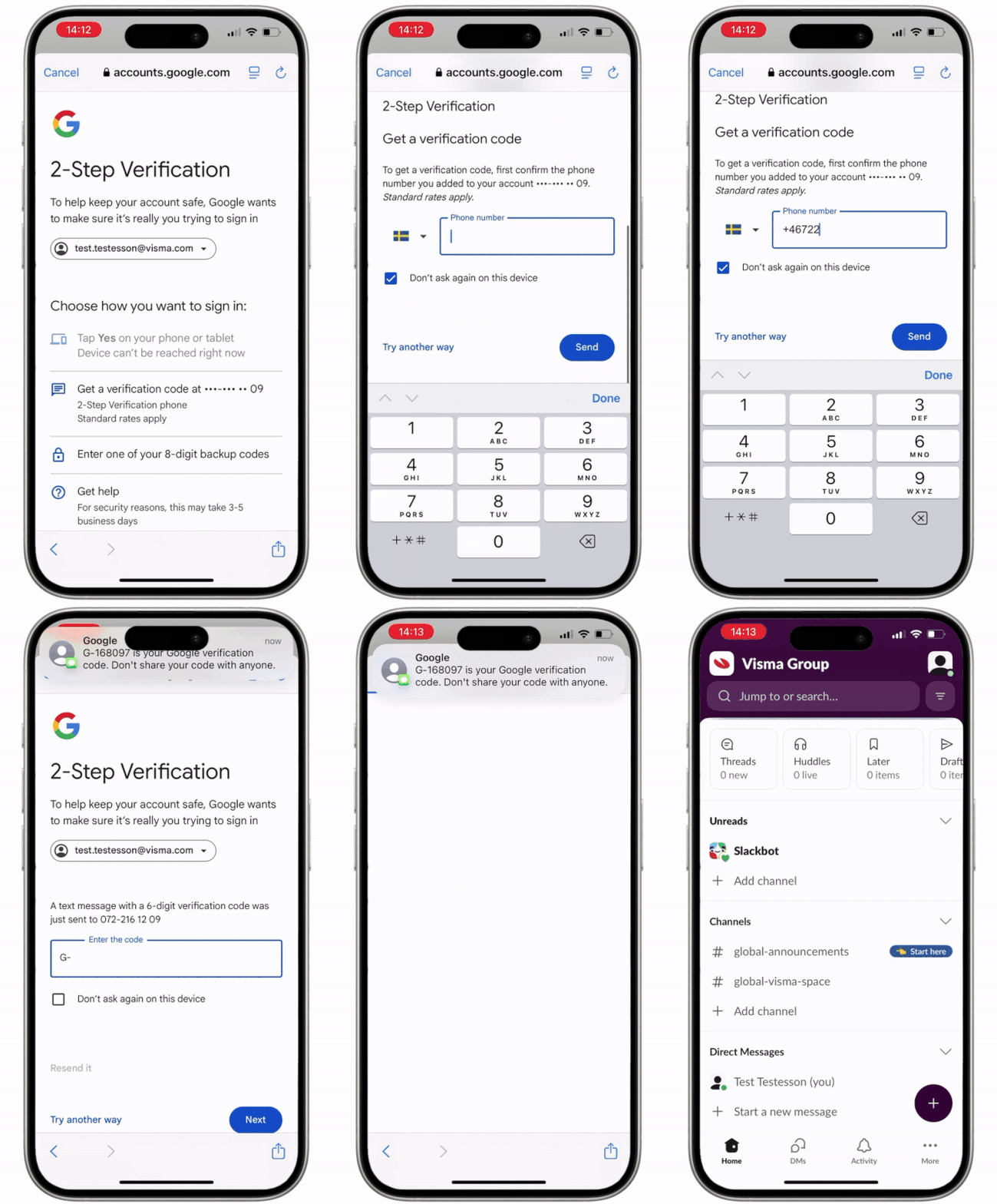
8. Finalize Slack setup
Select "Get a verification code sent at •••-••• ••XX", enter your phone number and select "Done" then "Send". Enter the code you received and select "Done" and "Next". You can now use Slack in on your phone.
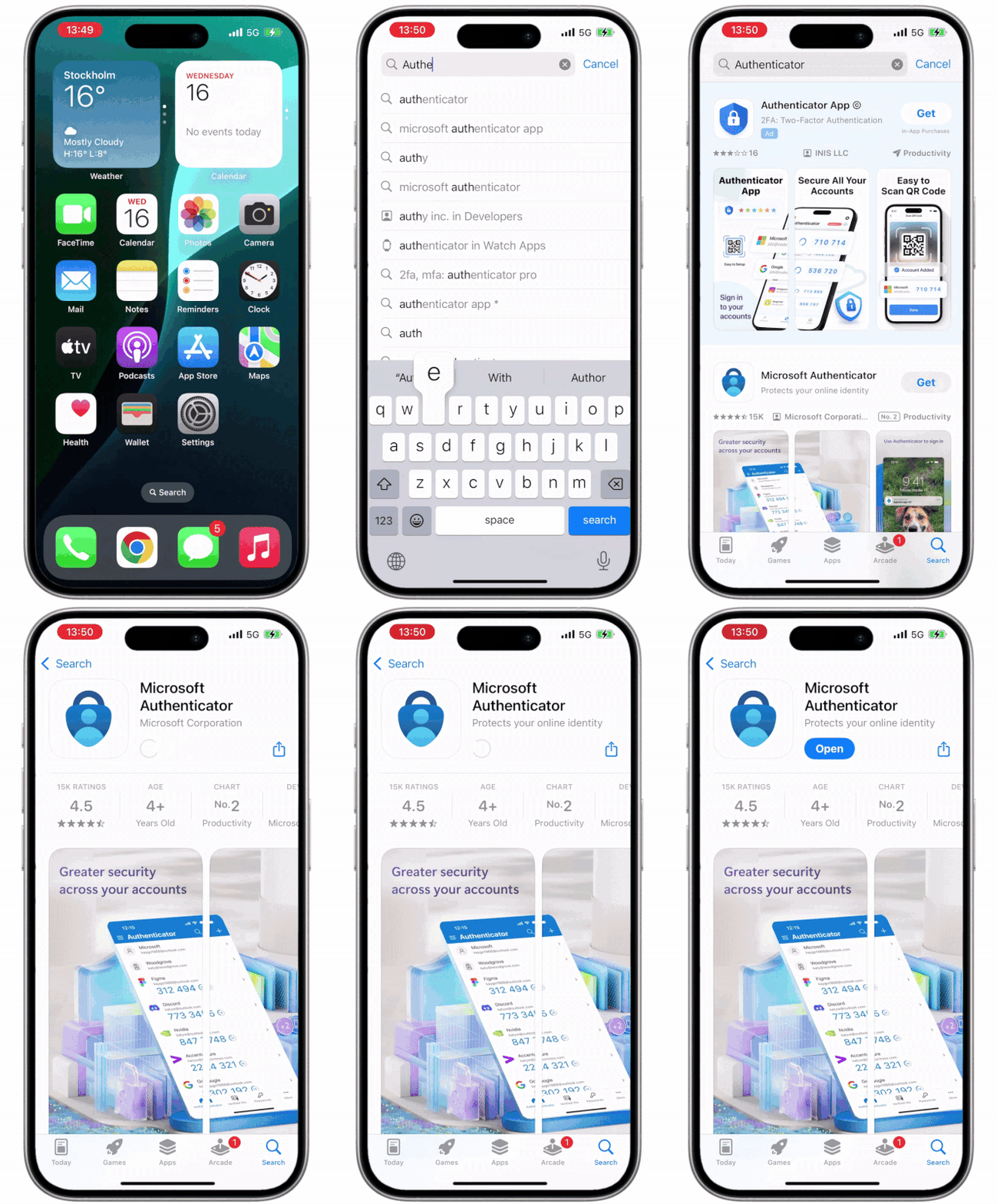
8. Download Microsoft Authenticator
Open the App Store, search "Authenticator", select "Get" then "Install".